Admin Panel Guide
A complete walkthrough of the WhatsCloud Administration Panel.
Admin Panel Guide
The Admin Panel is the command center for your SaaS business. It gives you complete control over users, subscriptions, settings, and the overall health of your platform.
1. Dashboard
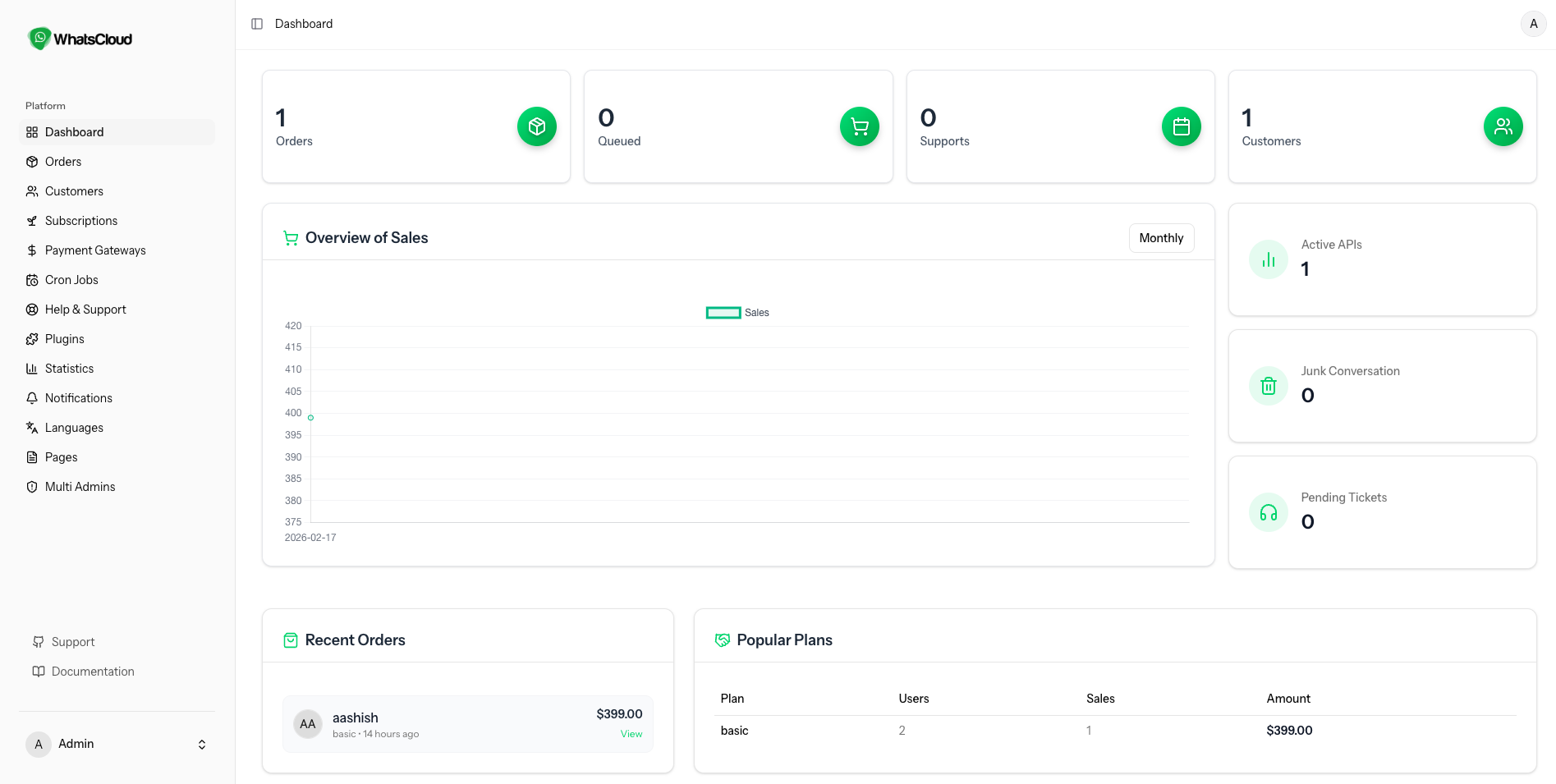
The Dashboard provides a clean, high-level overview of your business performance.
Key Metrics
- Total Orders: Cumulative number of subscriptions sold.
- Queued Orders: Payments pending approval.
- Total Support: Snapshot of ticket volume.
- Total Customers: Current user base size.
- Overview Chart: Visual sales data with Weekly, Monthly, and Yearly filters.
- Operational Stats: Total Active APIs, Junk Conversations, and Pending Tickets.
Tables
- Recent Orders: A quick view of the latest transactions.
- Popular Plans: A leaderboard showing Plan Name, Total Users, Total Sales Count, and Total Revenue Amount.
2. Orders Management
Manage your billing and financial records efficiently.
Status Overview
- Counters: Total, Completed, Pending, and Declined orders.
Order Actions
The Orders table lists Order Number, Plan Name, Payment Mode, Amount, Status, and User.
- View: See full transaction details.
- Edit: Manually update payment status or assign a different plan to the user.
- Invoice Settings: Update your company address and tax details for generated invoices.
- Currency: Set the global application currency (e.g., USD, INR).
3. Customer Management
Control your user base with powerful CRUD operations.
User Segments
- Total: All registered accounts.
- Active: Users with valid subscriptions.
- Suspended: Users banned for policy violations.
- Expired: Users whose plans have ended.
Actions
- View/Edit: Modify user details like Name, Email, and Plan expiry date.
- Delete: Permanently remove a user and their data.
- Add New: Manually register a user from the admin backend.
4. Subscription Plans
Create flexible pricing tiers for your SaaS.
- Create/Edit: Set plan limits (Message count, Contact limit, Team members).
- Delete: Remove obsolete plans.
5. Payment Gateways
Monetize your platform with 11+ Pre-integrated Gateways.
- Configuration: Simply enter your API Keys (Client ID, Secret) for gateways like Stripe, Razorpay, PayPal, etc.
- Activation: Toggle gateways on/off with a single click.
6. Cron Jobs
Automate system tasks like subscription checking and scheduled messages.
- Setup Guide: The page provides the exact Cron command you need to add to your server's
crontab.
Important: Without Cron Jobs, scheduled campaigns and auto-renewals will not work.
7. Help & Support
A built-in ticketing system to support your users.
- Ticket Status: Filter by Open, Pending, or Closed.
- Management: Reply to user queries and update ticket status directly from the panel.
8. Statistics
Deep dive into the technical usage of the platform.
- WhatsApp API Stats: Message delivery success/failure rates.
- Template Stats: Which templates are most used.
- Campaign Stats: Performance of bulk messages.
- Contact Stats: Growth of user phonebooks.
9. Notifications
Broadcast important updates to your users.
- Send Notification: Push alerts directly to the user dashboard (e.g., "Maintenance Scheduled" or "New Feature Added").
10. Languages
Make your app global.
- Multi-Language: Create new language packs (e.g., Spanish, French).
- Translation: Users can switch the entire application interface to their preferred language.
11. Multi-Admins
Scale your team by adding staff members.
- Create Admin: Add co-founders or support staff with administrative access.
12. Settings
The core configuration area for your platform.
General Tabs
- Profile: Update your Admin Name and Email.
- Password: Secure your account with a new password.
- Appearance: Toggle between Light and Dark themes.
Developer Settings
Advanced configurations for system behavior.
-
App Settings:
- Change App Name.
- Enable/Disable Email Verification.
- Toggle Debug Mode (Useful for troubleshooting).
- Set Timezone and Default Language.
-
Primary Data:
- Upload Site Logo (Light/Dark versions).
- Upload Favicon.
-
Contact Info:
- Set Company Address, Email, Phone, and Country (Used in Invoices/Footer).
-
Mail Settings:
- Configure SMTP credentials (Host, Port, Username, Password) to ensure emails hit the Inbox.
-
Storage:
- Local: Store files on your server.
- Wasabi/AWS: Offload media to the cloud for scalability.
-
Pusher (Real-time):
- Configure Pusher credentials to enable real-time chat updates and message status changes. Crucial for Chat functionality.
App Update
Keep your system secure and feature-rich.
- Cloud Update (Automatic): One-click update system that fetches the latest version from our server and installs it.
- Manual Update: For users who have customized the code. Download the update zip and merge manually.