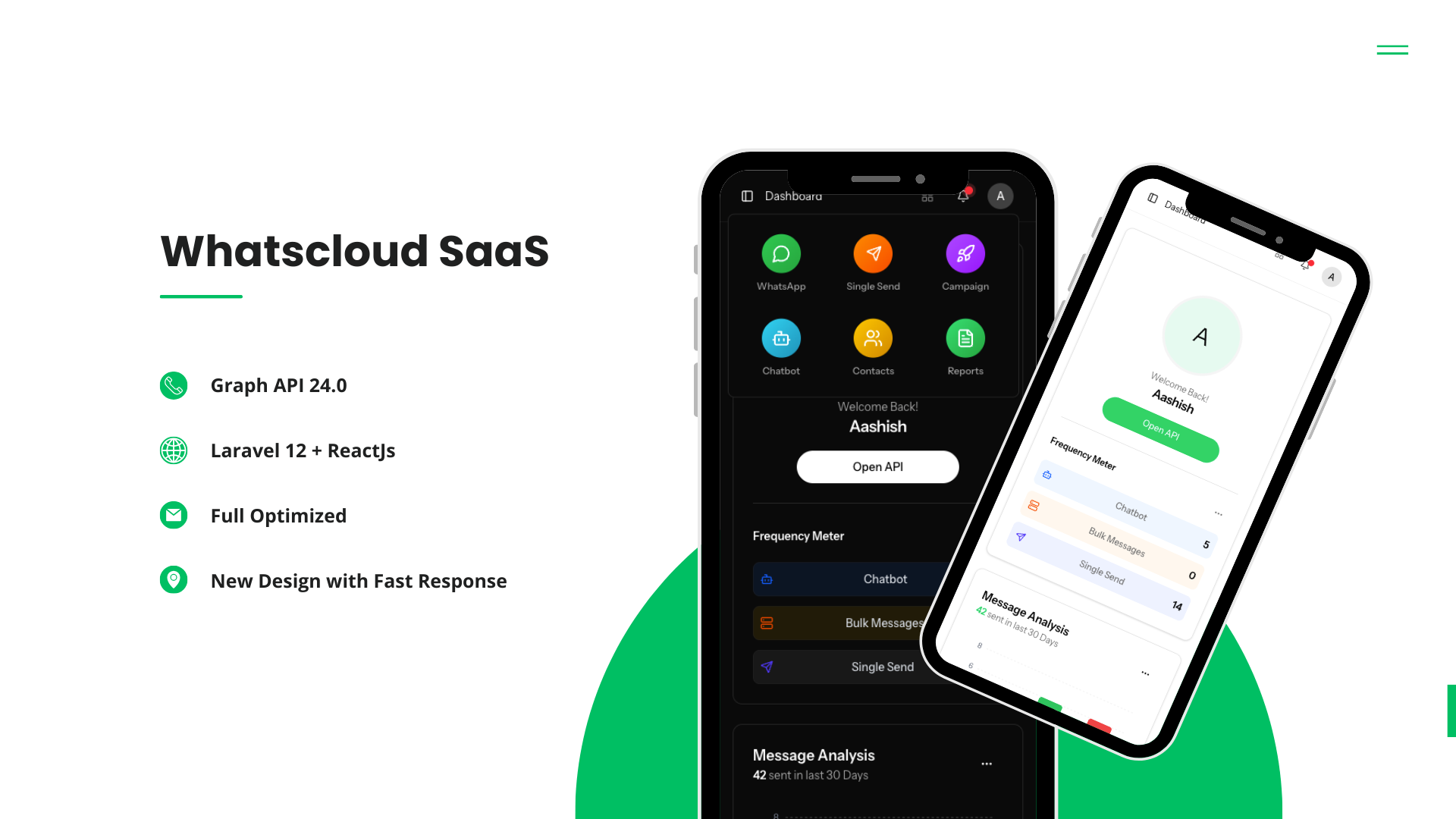
User Panel Guide
A complete walkthrough of the WhatsCloud User Dashboard and features.
User Panel Guide
The User Panel is your marketing command center. From here, you can manage campaigns, automate replies, and interact with customers in real-time.
1. Dashboard
The Dashboard is designed for total visibility and customization. You can Drag and Drop any block to rearrange the layout to suit your mood or workflow.
Analytics & Charts
- Message Analysis: A visual chart showing Seen, Delivered, and Failed counts filtered by Day, Week, Month, or Year.
- Frequency Meter: Real-time counters for:
- Chatbot Replies triggered.
- Bulk Messages sent.
- Single Messages sent.
- Top Conversations: A list of contacts you interact with most frequently.
Account Status
- Credits & Limits: Visual progress bars showing your current plan usage (Messages left, Contacts used) and expiration date.
- Quick Stats: Total All Messages, Ongoing Campaigns, and Total Contacts.
- Connection Status: Instantly see if your WhatsApp API is connected or disconnected.
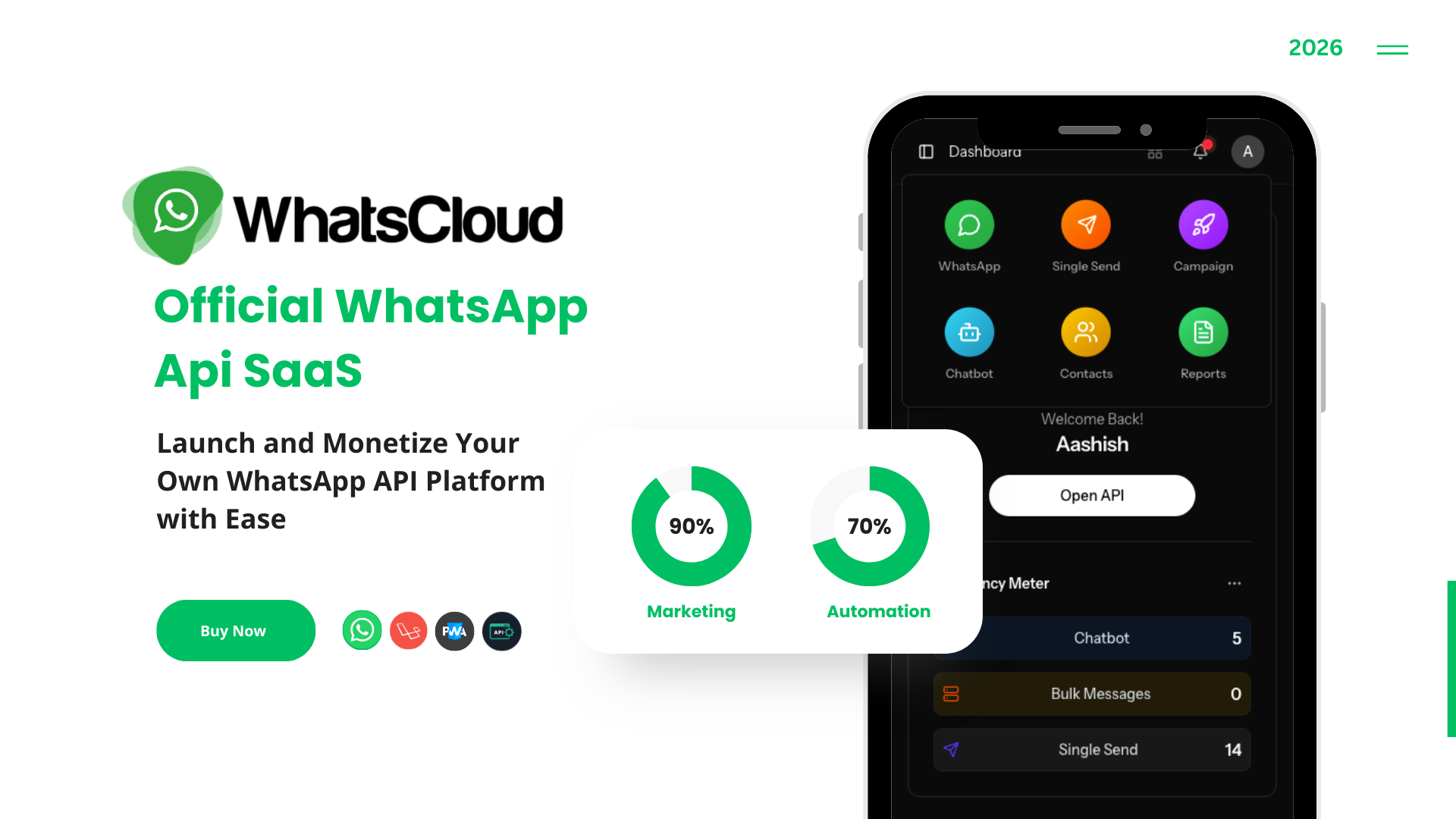
2. WhatsApp Configuration
Critical Step: This is the most important configuration. Without this, you cannot send messages.
To connect WhatsCloud to the Official WhatsApp Cloud API:
- Navigate to WhatsApp.
- Click Add New.
- Enter your Meta credentials:
- Phone Number
- Phone Number ID
- WhatsApp Business ID
- Access Token
- Verify Webhook: Copy the Callback URL and Verify Token provided by WhatsCloud and paste them into your Meta App Dashboard to complete the handshake.
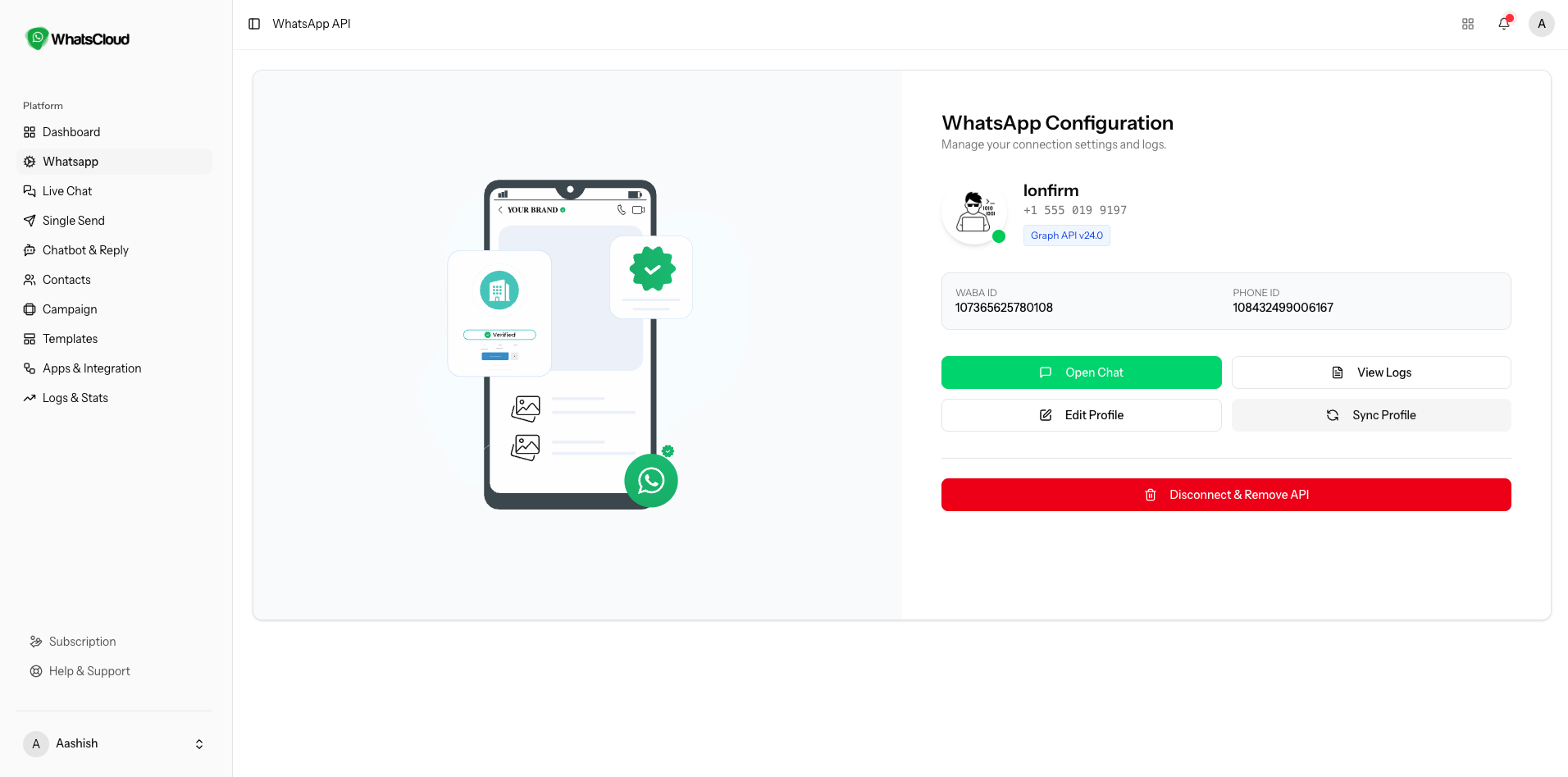
3. Live Chat
Interact with your customers directly from the dashboard. This replaces the need for the WhatsApp mobile app.
- Rich Messaging: Send Templates, Lists, Button messages, Media (Images/Video), and standard text.
- Organization: Pin important conversations to the top.
- Labeling: Add tags (e.g., "Lead", "Support", "VIP") to customers for better tracking.
4. Single Send
Need to send a quick update to one person?
- Navigate to Single Send.
- Select the gateway/number.
- Enter the destination phone number.
- Type your message or select a template and hit Send.
5. Chatbot & Auto-Reply
Automate your customer service 24/7.
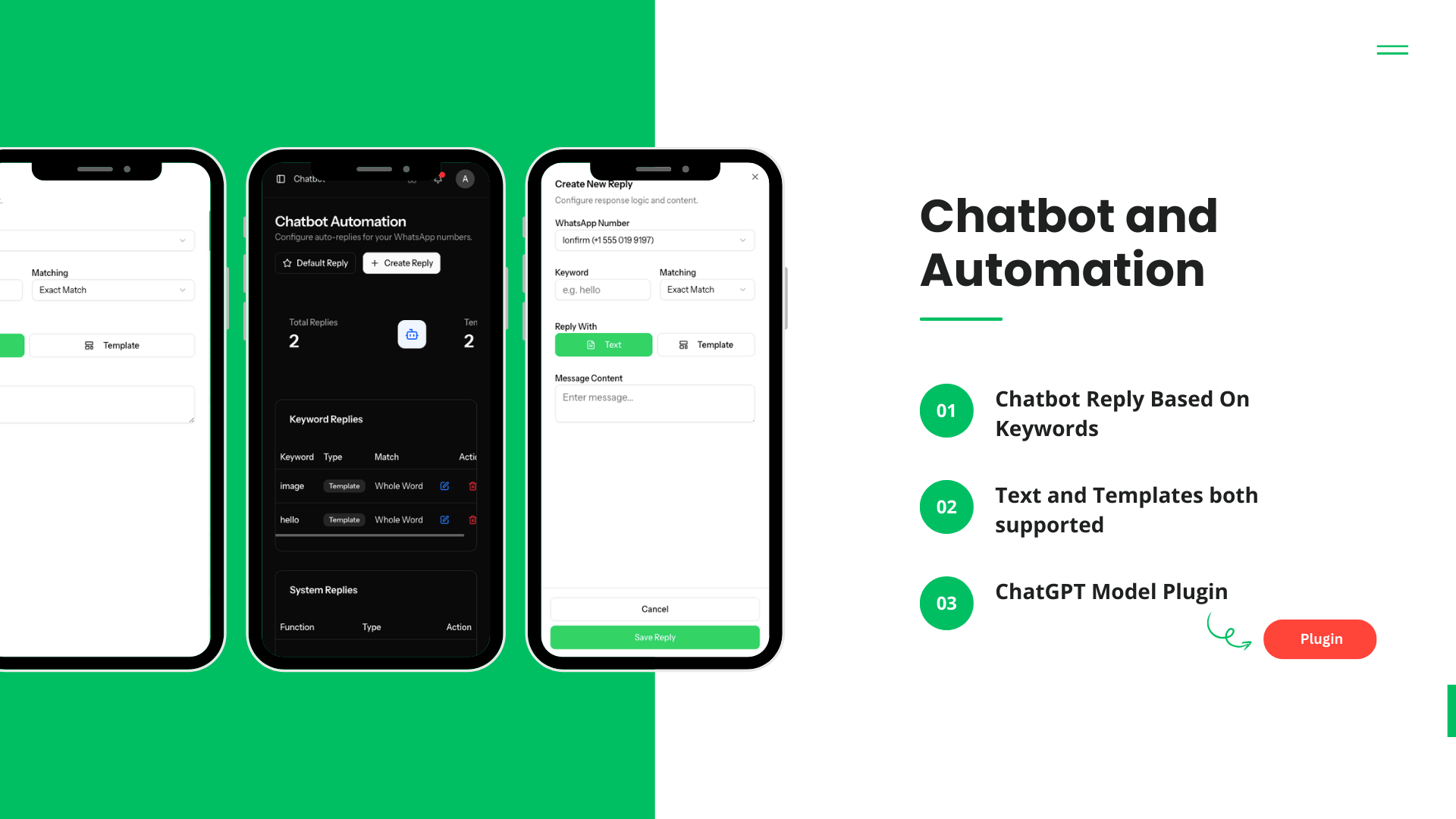
- Keyword Based: Create rules (e.g., If user says "Price", reply with "Pricing Template").
- Response Types: Reply with simple Text or complex Templates (Menus/Buttons).
- Fallback Reply: Set a "Default Reply" that triggers when the user's message doesn't match any keyword (e.g., "Sorry, I didn't catch that. Type 'Help' for options.").
6. Contacts Management
Manage your audience effectively.
- Groups: Segment users into lists (e.g., "November Leads", "Existing Clients").
- Advanced Data: Store up to 20 Custom Parameters per contact (Name, Email, City, OrderID, etc.).
- Bulk Import: Upload a CSV file using our predefined format to import thousands of contacts in seconds.
7. Campaigns
The core engine for bulk marketing.
- Create Campaign: Select a Contact Group, choose a Template, and set the Timing.
- Execution: You can send immediately or schedule it for a later date. The server handles the delivery in the background.
- Status Tracking: View a summary of Total, Pending, Delivered, and Failed messages for every campaign.
8. Templates
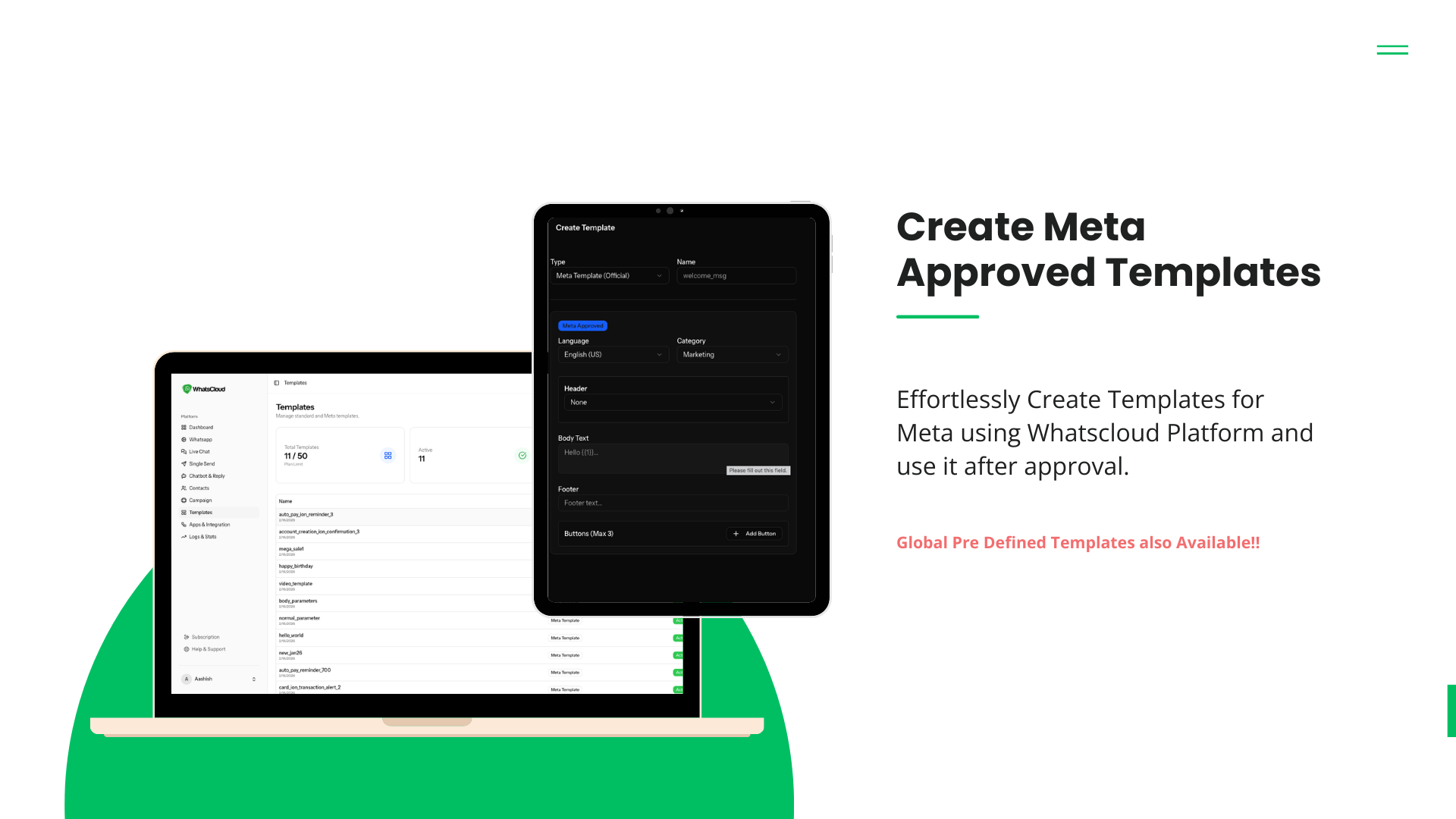
Manage your Meta-Approved message templates.
- Create New: Design new templates directly in WhatsCloud.
- Sync: Click "Sync" to fetch templates you created on the Meta Developer Portal.
- Global Library: Browse and import "Global Templates" provided by Meta to get started quickly without approval wait times.
9. Apps (API Integration)
For developers and integrations.
- Create App: Generate an API Key and Instance ID.
- Usage: Use these credentials to trigger messages from your external software (CRM, Website, POS) via WhatsCloud.
10. Logs & Statistics
A detailed ledger of every transaction.
- Transaction History: View every single message processed by the system.
- Filters: Filter logs by Today, Last 30 Days, or specific status (Failed/Sent).
- Breakdown: See separate stats for Chatbot hits, Single Sends, Live Chat messages, and API (App) usage.
11. Subscription
Manage your billing.
- Current Plan: View your active plan details.
- Upgrade/Change: Switch to a higher tier or renew your existing subscription directly from this page.
12. Help & Support
Need assistance?
- Create Ticket: Submit a support request to the admin.
- Ticket History: Track the status and replies of your past inquiries.
13. Settings
Personalize your profile and experience.
- Profile: Update your Name and Email address.
- Security: Change your login password.
- Localization: Switch the panel Language (e.g., English to Spanish).
- Appearance: Toggle between Light Mode and Dark Mode for visual comfort.