whatscloud/Docs
Frontend Editor
Customize your landing page using the advanced Live Visual Editor.
Frontend Live Editor
WhatsCloud features a state-of-the-art Live Visual Editor. Gone are the days of digging through complex settings panels just to change a simple headline.
With the Live Editor, you can browse your website and edit text, images, and sections directly on the screen—what you see is exactly what you get.
How to Access
- Login as Admin: First, log in to your Admin Dashboard.
- Go to Homepage: Open a new tab and visit your main website URL (e.g.,
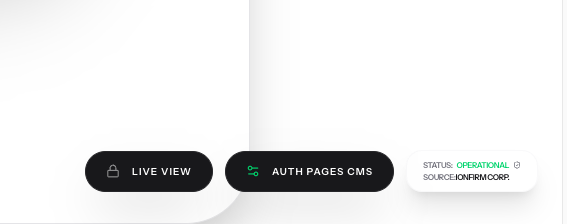
https://your-domain.com). - Locate the Floating Button: Because you are logged in as an Admin, you will see a floating button in the bottom corner labeled "Live View".
Using the Editor
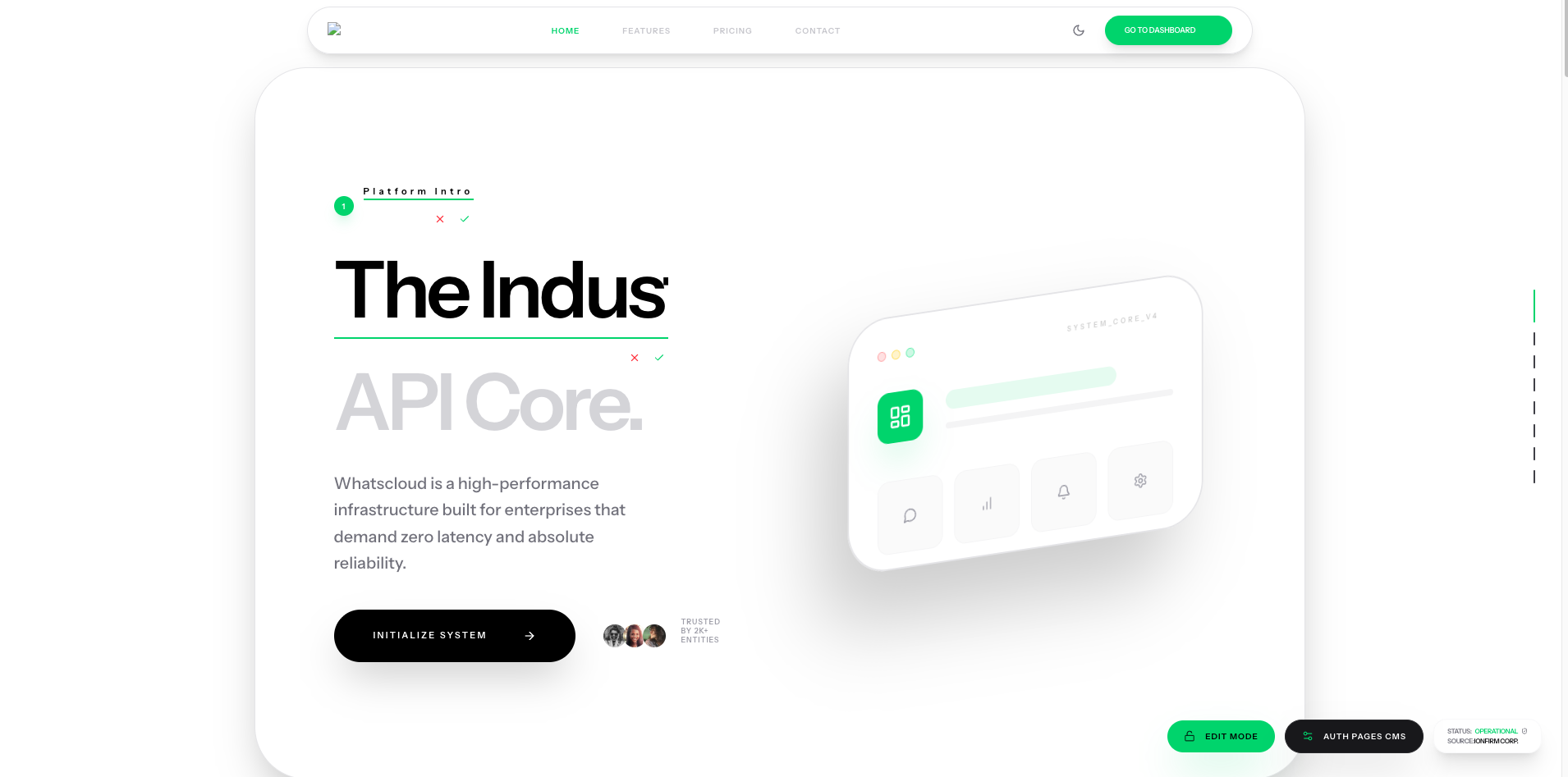
- Activate Edit Mode: Click the "Live View" button. The interface will switch to editing mode.
- Click & Type: Simply click on any text element (Headlines, Subtitles, Feature descriptions) and start typing.
- Instant Preview: You can see exactly how the content fits on the page in real-time.
Saving Changes
Once you are satisfied with your edits:
- Click the "Save" icon in the editor toolbar.
- The changes are instantly published and visible to all your website visitors.
Note: This feature is strictly protected. Only the Admin sees the Live View button; it is invisible to regular users and customers.