Installation Guide
Step-by-step guide to installing TeleMint on your server.
Installation Guide
Follow this guide to install TeleMint on your server. The process is automated and should take less than 10 minutes.
Step 1: Upload & Extract
- Download: Buy and download the project zip file from the Marketplace or directly from us.
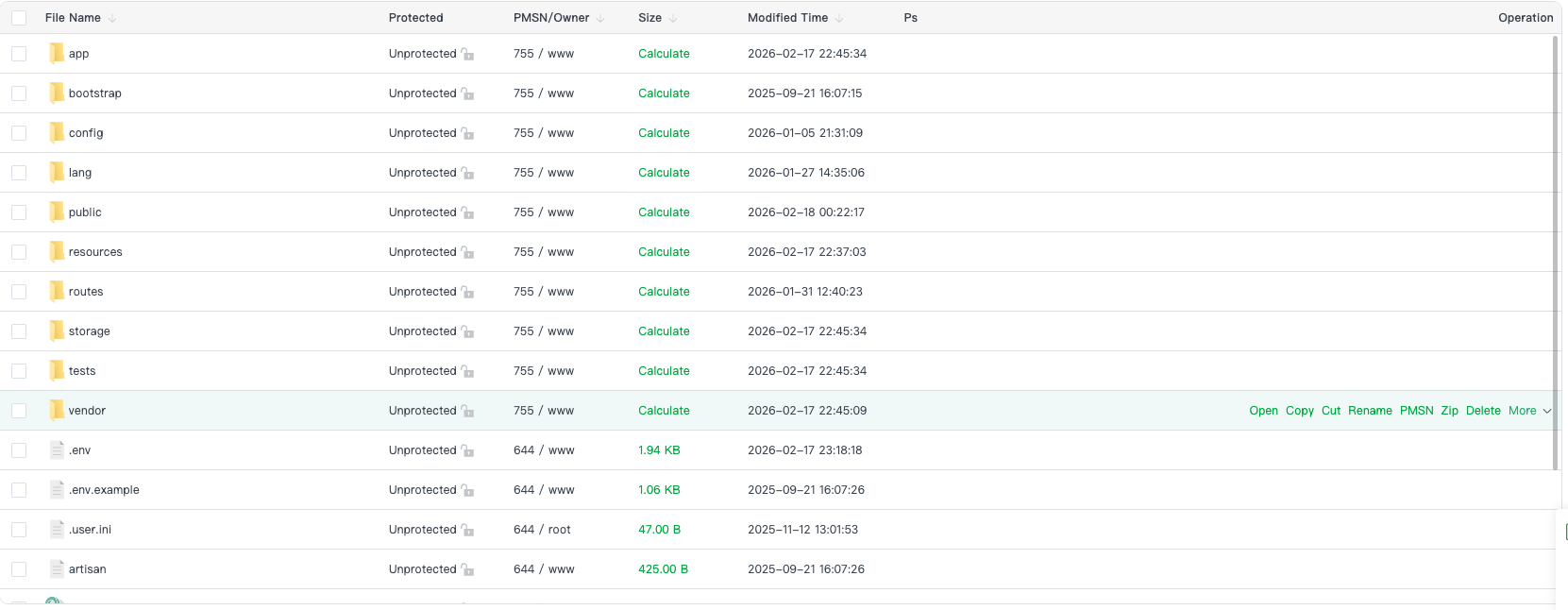
- Upload: Upload the zip file to the root directory of your server or hosting (usually
public_htmlor/var/www/html). - Extract: Extract the zip file contents.
Step 2: Server Configuration (Nginx Only)
If you are using Apache (standard Shared Hosting), you can skip this step.
If you are using Nginx, you must point your server to the public folder and add the following routing rule to your configuration file:
root /var/www/html/your_project_folder/public;

location / {
    try_files $uri $uri/ /index.php?$query_string;
}
Step 3: Prepare the Database
Before running the installer, you need a blank database.
👇 How to create a Database in cPanel (Click to Expand)
- Log in to your cPanel.
- Go to the Databases section and click MySQL Database Wizard.
- Step 1: Enter a name for your database (e.g.,
telemint_db) and click Next. - Step 2: Create a database user (e.g.,
db_user) with a strong password. Save these details! - Step 3: Assign All Privileges to the user and click Make Changes.
Step 4: Run the Installer
Now that your files are uploaded and the database is ready, you can install the application.
- Open Browser: Navigate to: https://example.com/install
- System Check: The installer will verify your server requirements. Ensure all dependencies are met.
- Database Setup: Enter the database details you created in Step 3:
| Field | Example |
|---|---|
| Host | localhost |
| Name | telemint_db |
| Username | db_user |
| Password | pass123 |
- License Verification: Enter your Purchase Code to verify your license.
- Install: The installation will start. This may take a few seconds or minutes depending on your server speed.
Step 5: Completion & Login
Congratulations! You have successfully installed TeleMint.
Default Admin Credentials
| Role | Password | |
|---|---|---|
| Admin | admin@ionfirm.com | 123456789 |
⚠️ Security Warning: After logging in, immediately change the default admin email, password, and profile settings to secure your application.
You’re all set! 🎉 Your TeleMint installation is now ready for use.